

Session
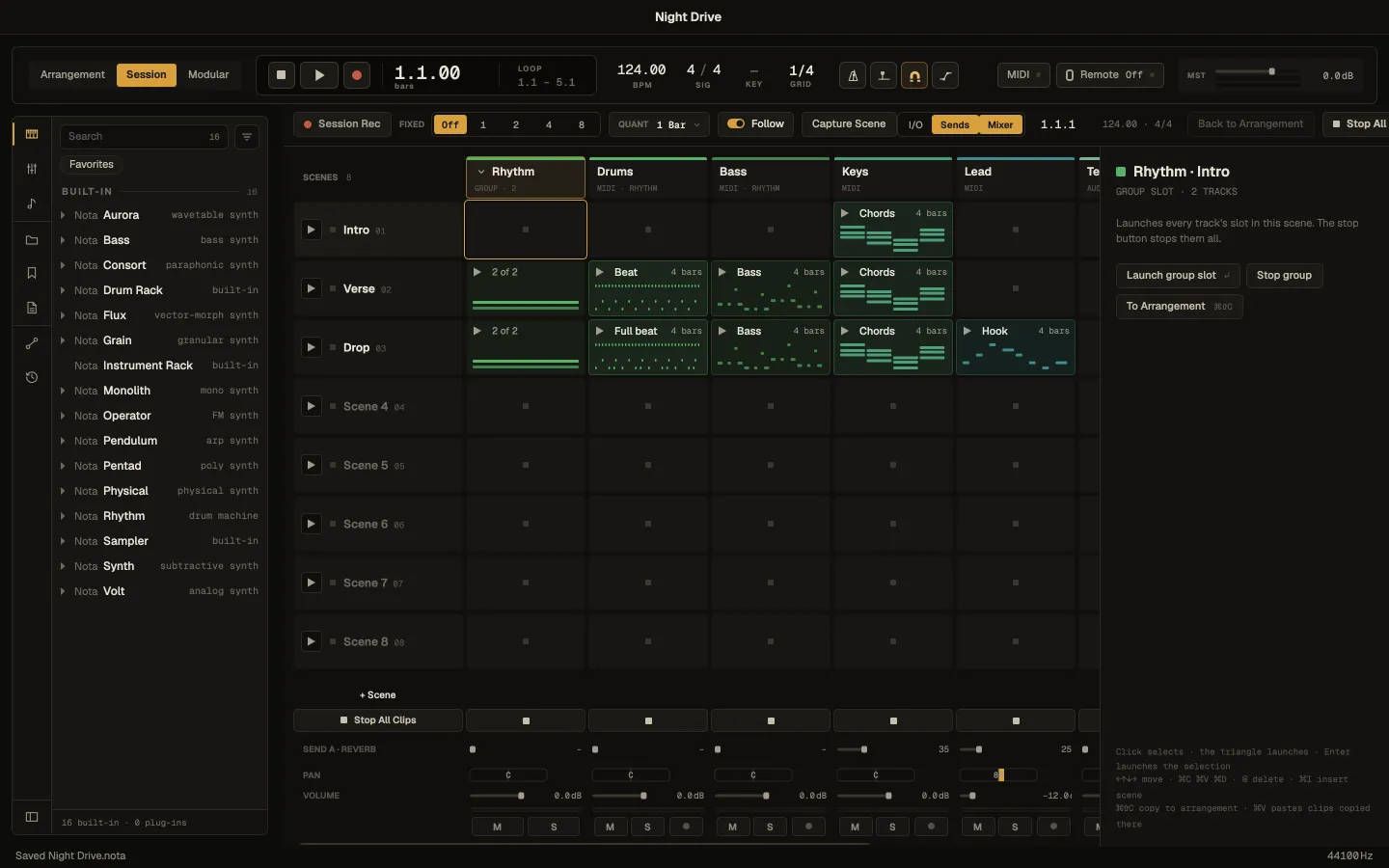
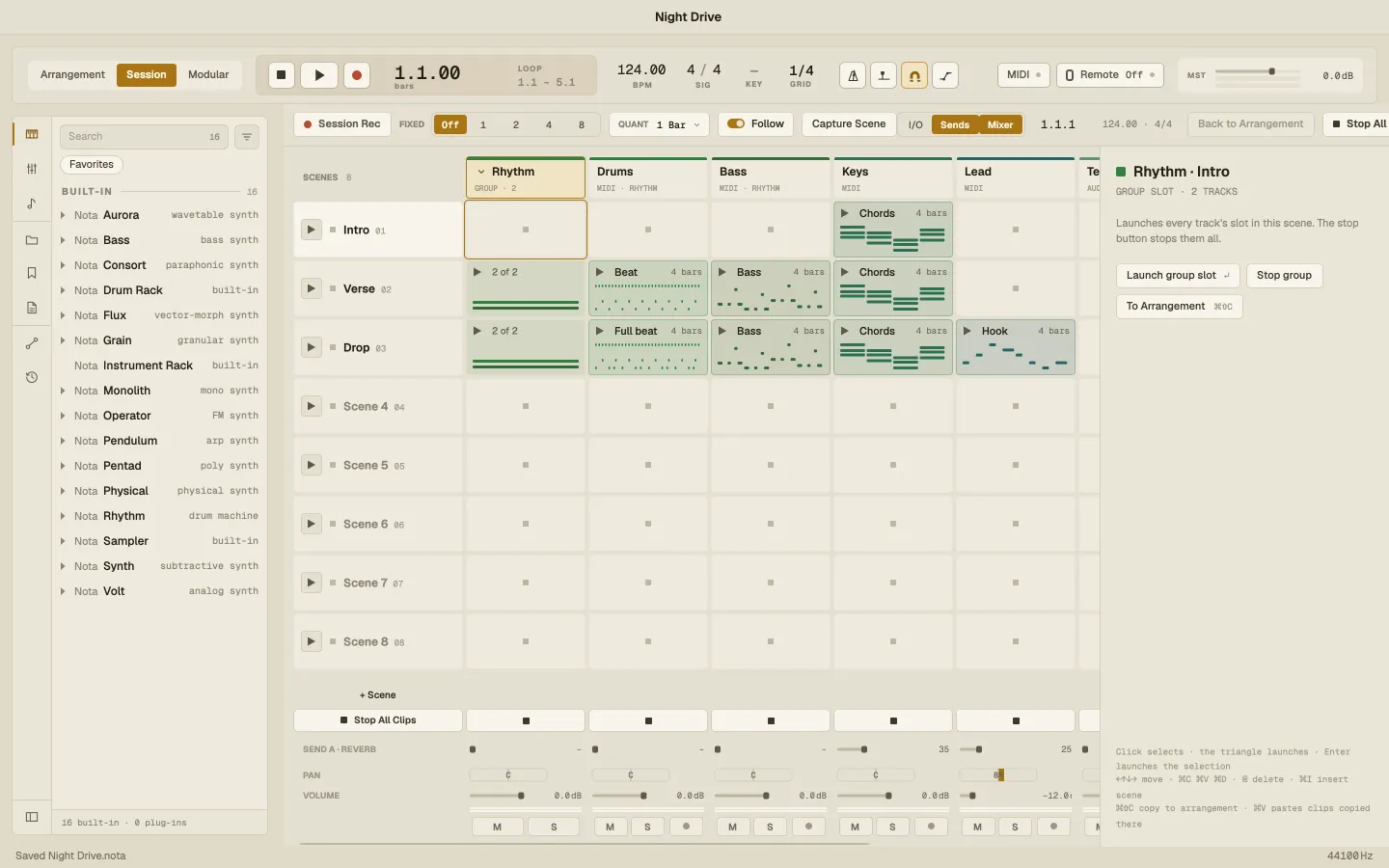
The Session view is a grid of clips: a column per track, a row per scene. Each clip loops until you launch another one in its column, so you can try parts against each other, jam, and build a song live.
Launching
Section titled “Launching”- Click a slot to select it; click its ▶ triangle to launch it.
- Launch a whole row with the ▶ next to its scene name on the left.
- The ■ button at the bottom of a column stops that track; Stop All (or Stop All Clips under the grid) stops everything.
- Return launches whatever is selected.
Clips and scenes start in time with the music: on the next bar, or whatever QUANT in the toolbar says — None, 1/16 … 1/2, 1 Bar, 2, 4 or 8 bars. A clip’s progress pie shows where it is in its own loop.
The grid
Section titled “The grid”Columns carry the track’s name and colour; a clip has a name, a colour, a preview of its notes or waveform, and its length in bars. A group track is one column you can launch, and it folds its tracks away. Returns and the master close the row.
| Do this | To |
|---|---|
| Arrow keys | Move the selection between slots and scenes |
| Double-click a slot | Edit the clip; an empty MIDI slot gets a new clip |
| Drag a clip to another slot | Move it — with ⌥, copy it |
| Drag a scene up or down | Reorder scenes |
| ⌘C ⌘X ⌘V | Copy, cut, paste a clip (a cut clip moves when pasted) |
| ⌘D | Duplicate a clip into the slot below, or a scene below itself |
| ⌘I | Insert a scene below the selection |
| F2 | Rename the selected clip or scene |
| Delete | Delete the selected clip or scene |
| Double-click a column header | Rename the track |
| Right-click a header, a slot or the empty grid | Add an instrument, audio or return track, rename or delete one |
You can insert, duplicate, capture and move scenes while the music plays. Capture Scene copies the clips playing right now into a new scene.
Audio slots are full audio clips: double-click one for the same audio clip editor as in the Arrangement.
The inspector
Section titled “The inspector”The panel on the right edits whatever is selected.
A clip:
- Launch mode — Trigger (start and keep playing), Gate (play while held), Toggle (start / stop on each launch) or Repeat (retrigger in time while held).
- Quantize — its own launch quantize, or the global one.
- Legato — take over from the clip that was playing at the same position instead of starting from the top.
- Loop — off makes it a one-shot.
- Velocity % — how much the launch velocity (from a pad or key) scales the clip.
- Follow action — what happens after the clip has played for a while: two actions A and B with a chance between them and a time. Actions: Next, Again, Previous, First, Last, Any, Other, Stop and Jump to a scene.
- Color, Rename, Duplicate, Delete, To Arrangement.
A scene: a name and colour, a Tempo and Signature that apply when it launches (Launch without a tempo change skips them), and Next after — move on to the next scene after a number of bars.
An empty slot: Insert MIDI clip, Paste, Record here, and Stop button — turn it off so launching this scene keeps that track playing instead of stopping it.
The Follow switch in the toolbar turns all follow actions on or off at once.
Recording into a slot
Section titled “Recording into a slot”Arm a track, select a scene, and click Session Rec: Nota records into that track’s slot in the selected scene. Click Session Rec again to keep the take — open-ended takes are cut to whole bars. Or set FIXED to 1, 2, 4 or 8 bars, and the take stops by itself.
The mixer under the grid
Section titled “The mixer under the grid”Under the grid sits a mixer for every column. Show or hide its sections with I/O, Sends and Mixer in the toolbar: inputs and outputs, the send to each return, pan, volume, mute, solo and arm.
Session and Arrangement
Section titled “Session and Arrangement”A track plays either its Session clip or its Arrangement clips. Launching a slot takes the track over; Back to Arrangement hands every track back, and the ARR badge on a column hands back just that track.
Clips copy both ways — ⌘⇧C sends the selected clip, group slot or scene to the Arrangement at the playhead. See Copy, paste and drag.