

Audio
Open Settings with File ▸ Settings…, or Settings on the start window.
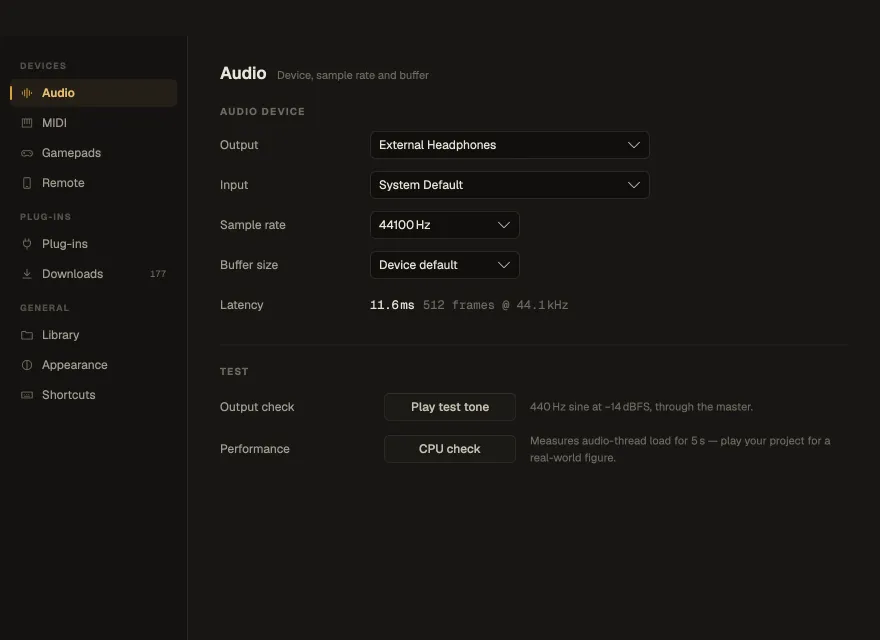
Audio device
Section titled “Audio device”| Setting | What it does |
|---|---|
| Output · Input | The audio device Nota plays through and records from |
| Sample rate | Device default, 44 100, 48 000, 88 200 or 96 000 Hz |
| Buffer size | Device default, 64, 128, 256, 512, 1024 or 2048 samples |
| Exclusive mode (Windows) | WASAPI exclusive — the lowest latency, but other apps go silent while Nota plays |
Latency shows what the buffer means in milliseconds. A smaller buffer means less delay between playing and hearing — best while recording; a larger one gives the CPU more room — best while mixing big projects.
- Output check — Play test tone: a quiet 440 Hz sine through the master, to check you hear Nota at all.
- Performance — CPU check measures the audio thread’s load for 5 seconds. Play your project meanwhile for a real-world figure: it reports the average, the peak and any dropouts.