
MIDI Learn
MIDI Learn connects a physical control to a control on screen: turn a knob on your controller and a filter moves in Nota.
Mapping a control
Section titled “Mapping a control”-
Click MIDI in the transport bar. Everything you can map lights up.
-
Click the control in Nota you want to move — a knob, fader, switch, macro…
-
Move a knob or fader on your controller (or press a pad, a gamepad button, or move a phone control). The mapping is made; mapped controls stay outlined in teal.
-
Map more, then click MIDI again to finish.
What you can map
Section titled “What you can map”Every parameter of the built-in instruments, effects and MIDI effects (switches, envelopes and filters included), plug-in parameters, track volume, pan, mute and solo, the master, the transport, rack macros, and the mute and solo of rack chains and Drum Rack pads.
Sources can be a CC, a MIDI note, a gamepad button, stick or trigger (macOS), or a control on a phone running Nota Remote — all in one table.
- A button or note is momentary: it flips a switch once when pressed, and holds a continuous control at the top of its range until released.
- A knob, fader, stick or trigger drives a continuous control over its whole travel, and flips a switch as it crosses halfway.
The MIDI map
Section titled “The MIDI map”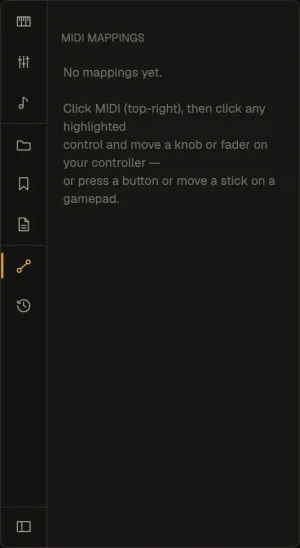
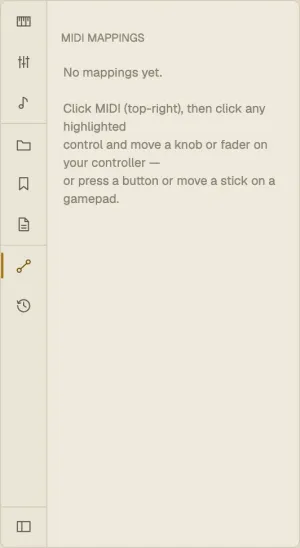
The browser’s MIDI map tab lists every mapping: the control, its source (CC 74 · ch1, Note 36 · ch10, Pad · Left stick ↑↓, Phone · XY X), an editable output range, Invert, and delete.
Mappings are saved with the project.