Devices
Every track has a device chain: the devices that make and shape its sound, left to right. Select a track to see its chain in the panel at the bottom.
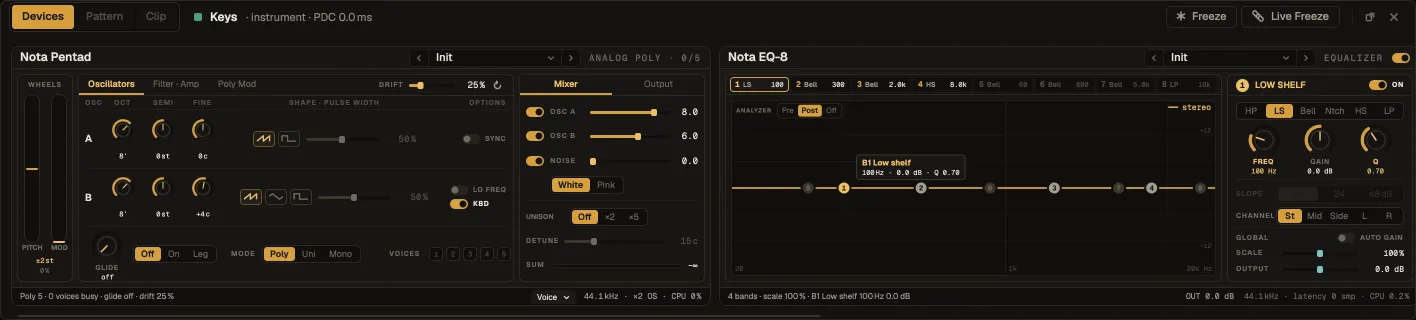
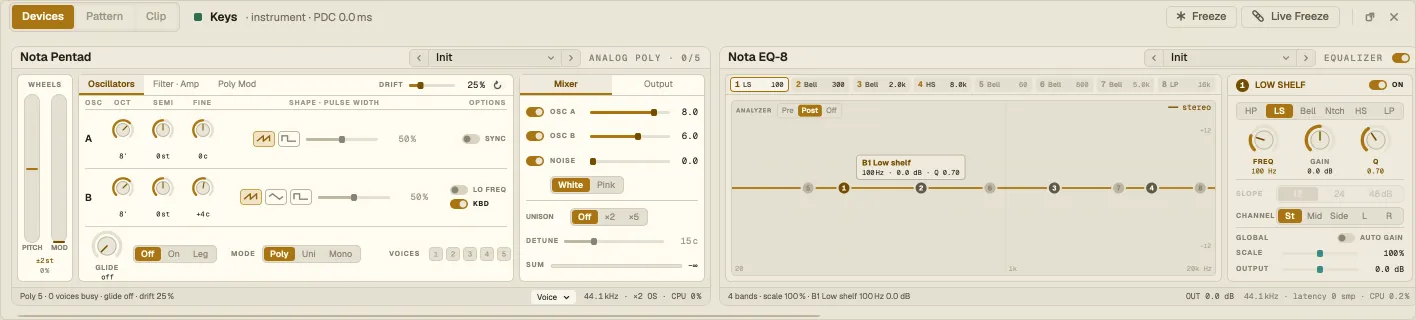
MIDI effects → instrument → audio effects. MIDI effects (an arpeggiator, a chord generator) change the notes before the instrument plays them; the instrument turns notes into sound; audio effects process that sound. An audio track has no instrument — only audio effects.
Adding devices
Section titled “Adding devices”- Double-click an instrument or effect in the browser — an effect goes onto the selected track.
- Drag it from the browser onto a track, or into the chain where you want it.
- Dropping an instrument onto an instrument track replaces its instrument.
The card
Section titled “The card”Each device is a card with a header — name, preset picker (‹ Init ⌄ ›), the S / L size switch where the device has one, and the on / off (bypass) switch — over its controls. Knobs, sliders and graphs work the same everywhere: drag, ⇧ for fine steps, double-click to reset; graphs are controls too (drag the nodes, curves and handles).
| Do this | To |
|---|---|
| Drag the header | Move the device in the chain |
| Click a device · Delete | Remove it |
| Right-click the header | Move left / Move right, Copy, Paste, Delete, presets, Save preset, A / B compare, and Documentation — this device’s page in the manual |
| Click the power switch | Bypass the device |
A / B compare keeps two versions of a device’s settings: switch between A and B to compare, Copy A to B to start a variation.
Presets
Section titled “Presets”Every built-in device ships with factory presets — the arrows step through them, the name opens the list. In the browser, a device expands into folders of its factory presets (Pads, Bass, Leads…). Save preset stores your own; they appear in the browser’s Presets tab. A preview in the browser plays an effect preset through a short demo, so you can audition before you load it.
Sidechain
Section titled “Sidechain”Compressor, Dynamic EQ-8, Ceiling, Level, Shutter, Auto Filter and Prism can listen to another track — pick it as the device’s sidechain source (pre or post that track’s fader). Nota Flux reacts to another track, and Auto Shift can follow another track’s notes, the same way.
Plug-ins
Section titled “Plug-ins”VST3 (and AU on macOS) plug-ins sit in the chain like built-in devices. Their card shows the parameters; Open editor opens the plug-in’s own window. See Plug-ins.