

Nota Audio Effect Rack
Nota Audio Effect Rack holds several chains of effects inside one device. Process a sound several ways at once and blend them, build a reusable effect “patch” with a few macros on top, or switch between effect chains with one control.
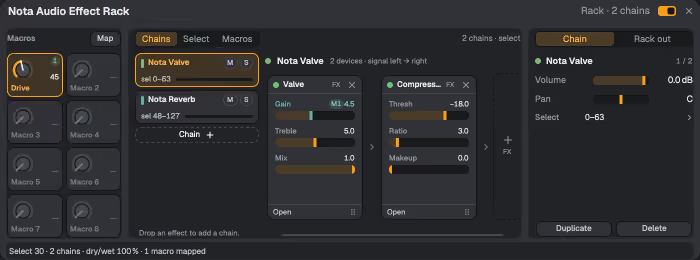
It uses the same card as the Instrument Rack: macros, the Chains, Select and Macros tabs, the Chain and Rack out panel. A chain’s effects move, copy and paste as they do there — and between the rack and the track’s device chain.
Chains
Section titled “Chains”+ Chain adds one (or drop an effect on the chain list); the dashed target at the end of a chain adds an effect — the menu lists the built-in effects and a Plug-ins submenu. Each chain has a name, its own Volume, Pan, level, mute and solo. Right-click a chain to duplicate or delete it.
Chains run
Section titled “Chains run”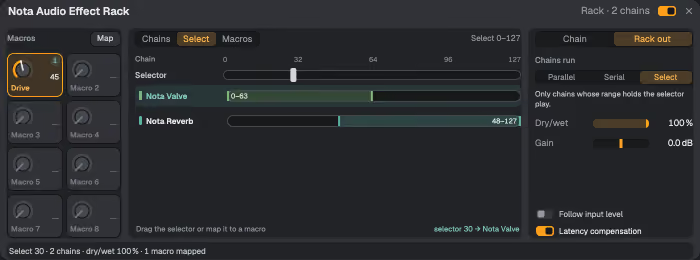
| Choice | What happens |
|---|---|
| Parallel | Every chain processes the input; their outputs are summed |
| Serial | Chain 1 feeds chain 2, top to bottom |
| Select | Only the chains whose select range holds the selector play |
Rack out also holds Dry/wet, Gain (±12 dB), Follow input level and Latency compensation (lines up chains with different latency).
Select
Section titled “Select”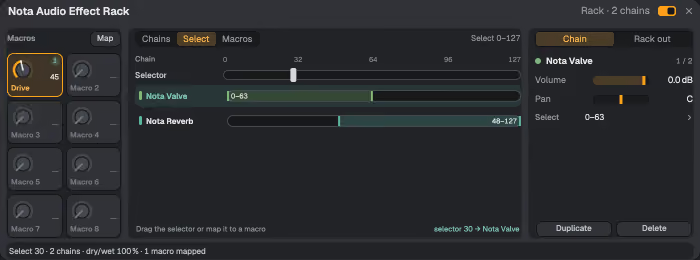
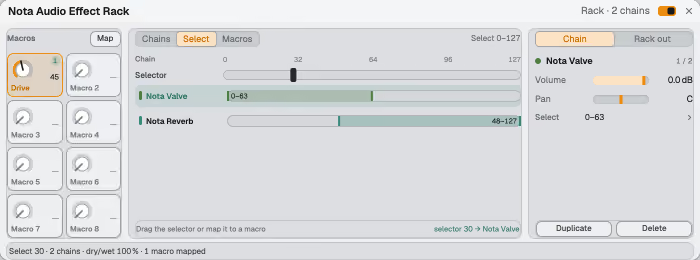
Each chain has a select range from 0 to 127; drag its edges. Drag the Selector to choose which chains play, map it to a macro (right-click the selector, or Map to the selector in a macro’s menu) and automate the macro, or switch on Follow input level so the input’s loudness moves it. The ranges only count in Select mode.
- Parallel compression in a box: a dry chain plus a chain with a heavy Compressor, Parallel.
- One knob, three effects: three chains with neighbouring select ranges, the selector on a macro.
- Wrap and unwrap: select effects on the track (⇧-click for a run) and press ⌘G (or Group into rack in the right-click menu) to move them into a new rack’s first chain, settings, automation and links included; ⌘⇧G (Ungroup rack) puts a one-chain rack’s devices back. See Grouping into a rack.