

The browser
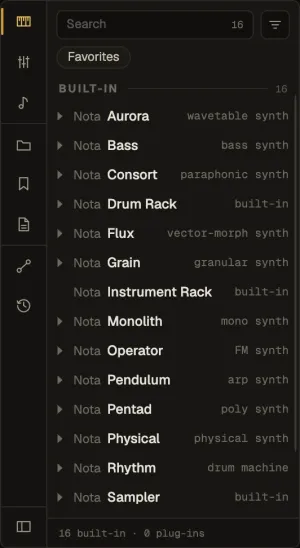
The browser on the left of the main window holds everything you can bring into a project. Its tabs are the icons down its left edge; the button at the bottom collapses it (also View ▸ Toggle browser).
| Tab | What’s in it |
|---|---|
| Instruments | Nota’s instruments (BUILT-IN) and your plug-in instruments (PLUG-INS). Each device opens into folders of its factory presets — Pads, Bass, Leads, Keys & Plucks… — with Init on top |
| Audio effects | Built-in and plug-in effects, with their presets — Vocals, Drums, Mix & Bus, Mastering… |
| MIDI effects | Arpeggiator, chord, scale, length, velocity, random, with their presets |
| Files | Your sample library as a folder tree — see Smart samples |
| Presets | The presets you saved yourself (right-click a device header ▸ Save preset) |
| Projects | The projects in your projects folder — open, reveal or delete |
| MIDI map | Every control mapped to a controller, gamepad or phone — see MIDI Learn |
| History | The open project’s versions |
Searching
Section titled “Searching”The search box filters the tab and counts the matches; search opens the preset folders around the
hits, and a folder name (“Mastering”) lists that folder across every device. The status line at the
bottom counts what’s shown — 16 built-in · 0 plug-ins.
The ⋮ button beside the search box holds view options — type tags, grouping by source, favourites first — and the tag editor.
Favourites and tags
Section titled “Favourites and tags”Star (★) a device or preset to make it a favourite — favourites sort to the top of their section. Tags let you group things your own way: assign them from the right-click menu, edit their title and colour in the tag editor, and filter with the chips under the search box.
Getting things into the project
Section titled “Getting things into the project”| Do this | To |
|---|---|
| Double-click an instrument | A new track with it (and an empty one-bar clip) |
| Double-click an effect | Add it to the selected track |
| Double-click a MIDI file | Put it on a new track |
| Drag onto a track or empty space | Add the instrument, effect, sample or loop there |
| Drag onto a device chain | Insert the effect between cards (a bar marks the spot) or replace the card under the pointer |
| Drag onto a Session slot | Put a sample or MIDI file in that slot |
| Drag onto a rack chain or a pad | Load it there |
Effects and presets can also be dropped onto a return track or the master.
Hearing before loading
Section titled “Hearing before loading”The preview player at the bottom of the browser plays samples, presets, kits and devices before you load them — see Preview player.