

Smart samples
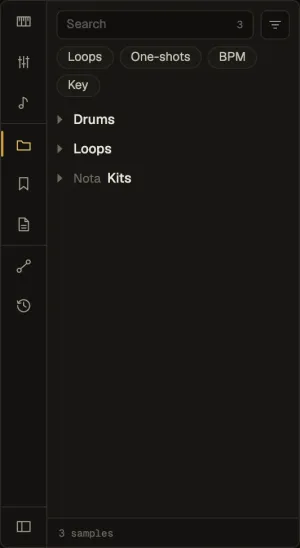
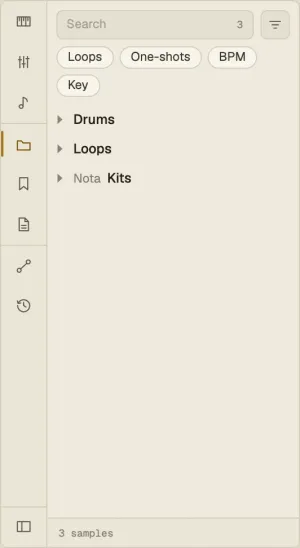
The Files tab shows your Samples folder (set in Settings ▸ Library) as a folder tree, and Nota knows what’s in it.
What Nota learns
Section titled “What Nota learns”In the background, Nota works out each file’s tempo, key, and whether it’s a loop or a one-shot, plus a timbre fingerprint. A newly installed pack goes first; results are kept, so each file is analysed once. The status line shows progress.
- Names come first:
Loop_124_Am,Pad C#m 90bpmor aOne Shotsfolder win over the analysis. - A loop’s exact tempo comes from its length — 16 beats in 7.742 s is 124.0.
Rows show it at the right edge: 124 · Am for a loop, the note for a tuned hit.
Filtering
Section titled “Filtering”The chips under the search box narrow the list:
- Loops · One-shots
- BPM — a range, with project tempo ±5 % one click away (loops that close warp cleanly)
- Key — with the project key one click away; a key also matches its relative, so A minor finds C major loops too
Similar sounds
Section titled “Similar sounds”Right-click a sample ▸ Show similar sounds lists the closest samples of the same kind, closest first. Click the chip to go back to all samples.
Loops that fit
Section titled “Loops that fit”Drop a loop on the Arrangement and it’s warped to the project tempo from the tempo Nota already knows (⋮ ▸ Warp loops to project tempo, on by default) — the status line says so: “loop warped 124 → 120 BPM”. With ⋮ ▸ Transpose to project key on, it also moves to the project key the shorter way. One-shots are never warped.
MIDI files (.mid) show in the Files tab too, and drop like samples — see
Projects and saving.