

Shortcuts
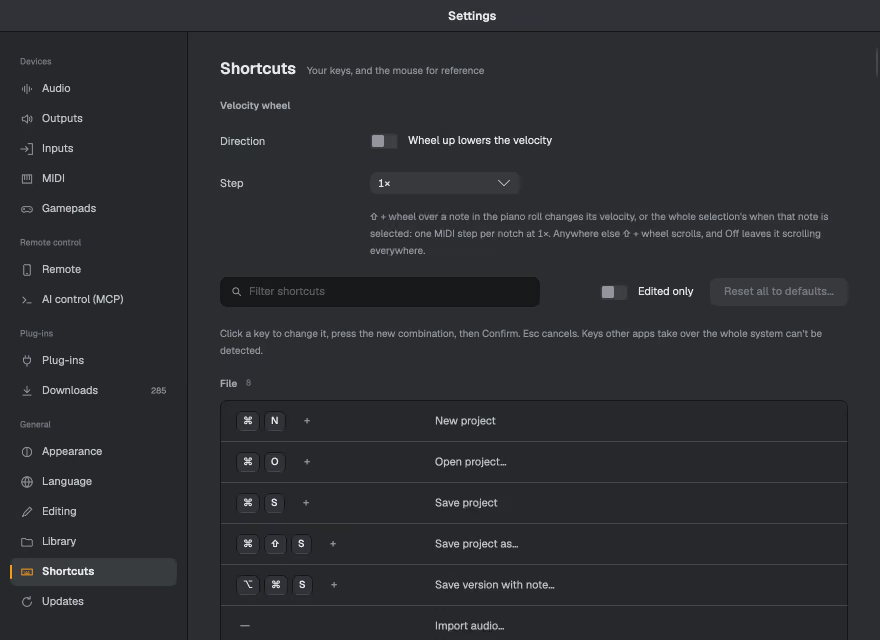
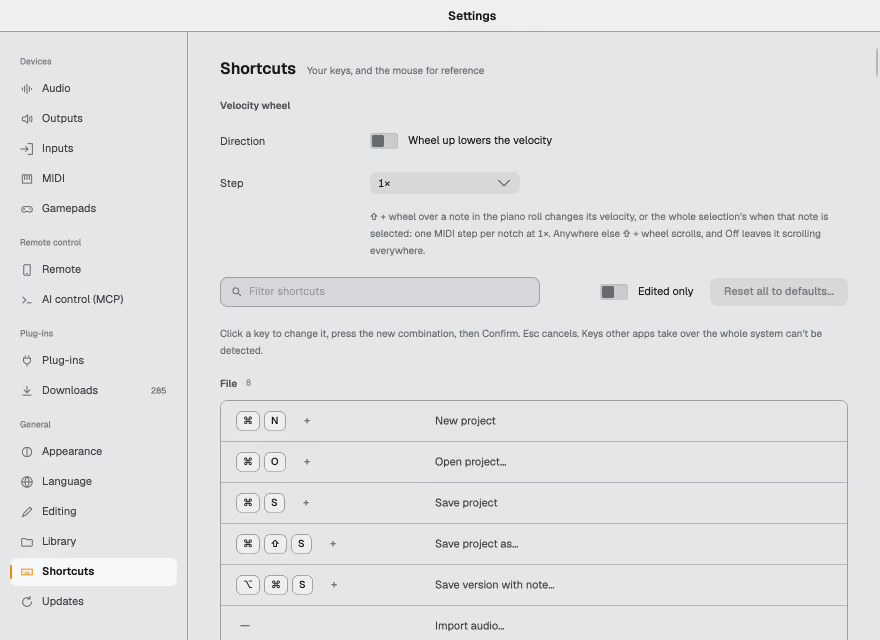
The Shortcuts page lists every key in Nota, grouped as in the menus — File, Edit, View, Transport, Track, Arrangement, Grid, Session, Piano roll, Devices, Modular, Browser files, Play notes (computer keyboard), Settings, Help — and every keyboard shortcut can be changed. Mouse and trackpad gestures, the gamepad, and the keys of lists and text fields (the arrows in the command palette, Return / Esc / Tab while you type a value) are listed below them for reference; they stay as they are.
The keys Nota ships with are in Keyboard shortcuts.
Change a key
Section titled “Change a key”- Click the key of the action — its key caps, or — when it has none. The row waits: Press a shortcut…
- Press the new combination. Nothing in Nota reacts to it while the row waits; the key shows in the row.
- Click Confirm (or press Return). The key works at once — in the menus, the right-click menus, the tooltips and the command palette too.
Cancel (or Esc) leaves the key as it was. Clear removes it: the action stays in the menus and the command palette, just without a key. To give an action Esc itself, click Assign Esc.
Every action can have a second key: click the quiet + after the first one. Delete, for example, answers ⌫ and ⌦.
Keys work where their action works: a piano-roll key while the piano roll has the keyboard, a Session key in the Session grid, Copy and Paste in whatever you clicked last — clips, notes, tracks or devices.
When a key is taken
Section titled “When a key is taken”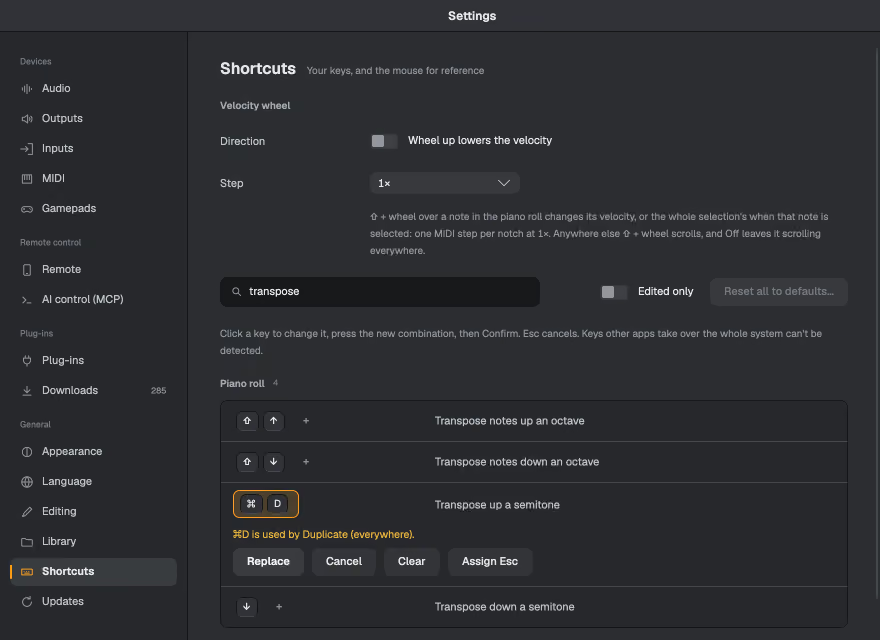
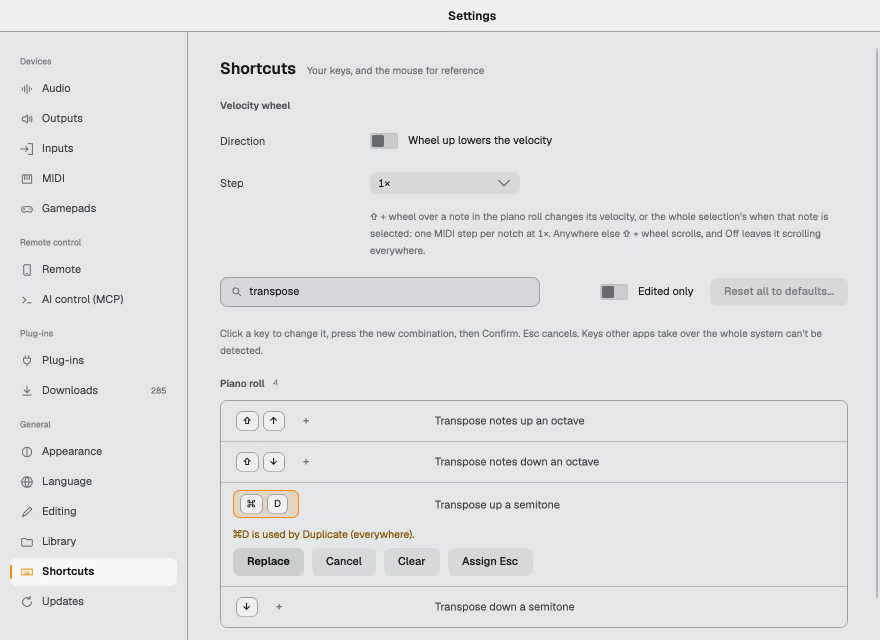
Before anything is saved, the row says which action already answers that key where this one works — “⌘D is used by Duplicate (everywhere)”. Replace gives the key to this action and leaves the other one without it (you can give it another key afterwards); Cancel keeps both as they were. Nothing is ever taken away without asking.
A key used only in a different view is allowed: the row notes where else it is used and which one wins — the view that has the keyboard (the piano roll, the Session grid, the device chain, the Files browser, Modular) always comes first. Keys the system keeps for itself — ⌘Q, ⌘H, ⌘Space on macOS, AltF4, AltTab and the Windows key elsewhere — are refused with the reason. Global shortcuts of other apps can’t be detected.
See and undo your changes
Section titled “See and undo your changes”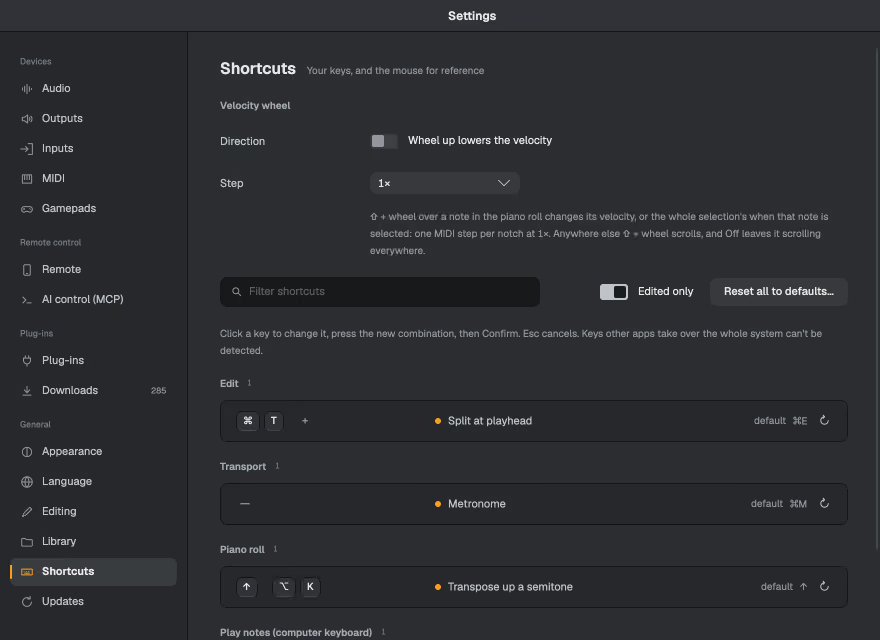
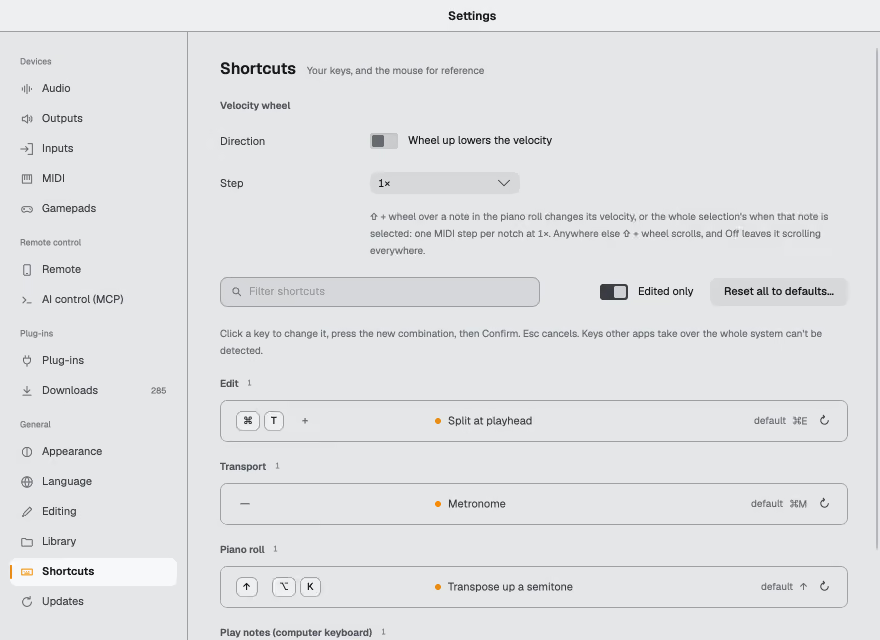
A changed key has an orange dot before its action, its default beside it, and a reset button that puts the default back (asking first if another action has that key now). Edited only shows just the keys you changed; Reset all to defaults… puts every key back after a confirmation.
Filter shortcuts finds an action by its name, its group or its key — type ⌘T,
cmd t or ctrl+shift+t to see what that key does.
Your keys are kept in Nota’s settings, only the ones you changed: when an update changes a default you never touched, you get the new one. If an update gives a new action a key you already use, yours stays and the new one waits under Needs a decision at the top of the page.
Velocity wheel
Section titled “Velocity wheel”At the top of the page, Velocity wheel sets how ⇧ + wheel changes the velocity of a note in the piano roll:
| Setting | What it does |
|---|---|
| Direction | Wheel up lowers the velocity — off by default, so wheel up raises it |
| Step | How far one notch moves the velocity: Off, or 0.25× to 2× in steps of 0.25×. 1× (the default) is one MIDI step per notch |
With Off, ⇧ + wheel only scrolls, over notes too. The setting applies to every piano roll and is remembered.