

Nota EQ-8
Nota EQ-8 is a mixing-console equalizer with eight bands. Use it to clean up mud, cut rumble, add air, carve space for one sound around another — on the stereo pair, the mid or the side.
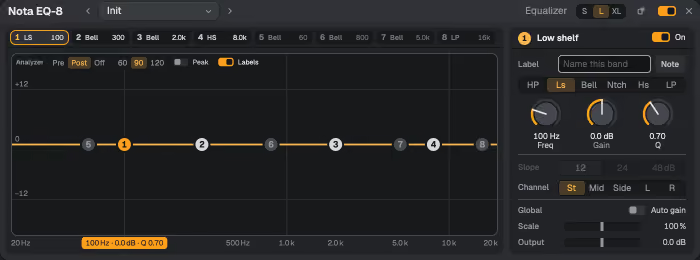
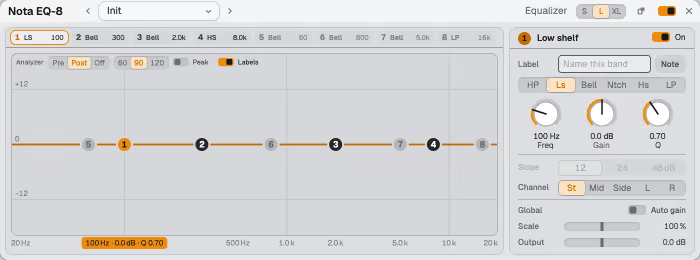
Layout: the band chips over the response graph fill the card; the right panel edits the selected band and holds the global controls. The S / L switch in the header folds the card to S: the band chips over the graph and the selected band’s Freq, Gain and Q and the Output.
XL: pick XL in the same switch to open the whole editor in a large panel above the device chain, as wide as the chain, with the graph stretched to fill it. The card stays in the chain as a small one that says Open in XL above. A track has one device in XL: picking XL on another moves the panel to it. The panel follows the selected track and comes back with the project. Shrink in the panel’s header (or Esc) returns the device to L. Drag the Devices panel’s top edge to make the XL panel taller. The pop-out button next to the switch opens the editor in a window of its own instead — see Devices.
The graph
Section titled “The graph”Each band is a numbered node on the response curve — drag it: sideways for frequency, up and down for gain. The band chips above the graph switch bands on and off and select one for the panel on the right. The selected band’s frequency, gain and Q (and a cut’s slope) are lit on the frequency strip under the graph, so nothing covers the curve.
The analyzer
Section titled “The analyzer”Behind the curve, the spectrum shows where the energy of the sound sits. Analyzer in the corner picks what it shows:
- Post (the default): the sound after the EQ as a filled shape, with the sound going in as a dim line over it, so the EQ’s effect reads as the gap between the two.
- Pre: the sound going in, filled.
- Off: nothing, and no analysis runs.
Each point reads a sixth of an octave, so a steady tone shows at its own level and pink noise reads flat. The shape rises at once on a hit and falls back over about a third of a second.
- 60 / 90 / 120 sets the range: the graph’s bottom edge is that many dB below 0 dBFS (90 by default). The EQ curve’s own ±dB scale stays the same.
- Peak adds a thin line at each frequency’s highest level of the last moments. It holds for 1.5 seconds, then falls.
Range and Peak are saved with the device and in its presets. They change only the display, never the sound.
A band
Section titled “A band”| Control | What it does |
|---|---|
| Type | Low cut, Low shelf, Bell, Notch, High shelf, High cut |
| Freq · Gain · Q | Where, how much, how wide (on the cuts, Reso) |
| Slope | For the cuts: 12, 24 or 48 dB per octave |
| Channel | St (both channels), Mid, Side, L or R — so a band can brighten only the sides, or tame one channel |
Band labels and notes
Section titled “Band labels and notes”Give a band a name so its purpose shows at a glance: select it and type into Label at the top of the band panel (up to 24 characters). The name appears next to the band’s node in the graph, follows the node as you drag it, and replaces the band type on its chip.
For the longer story, click the label in the graph, or Note next to the Label field. A box opens with the label and a note of up to 2000 characters, line breaks included. Click outside, press Esc or ⌘ Enter (Ctrl+Enter on Windows and Linux) to close it; the text is kept. A band with a note shows a small dot on its label, and hovering the label shows the note.
- Labels that would overlap are moved apart, with a thin line back to their node.
- Labels in the analyzer bar hides all labels and note dots in the graph (the chips and the band panel still show them). It is saved with the device.
- Labels and notes are saved with the project and in your own presets, and come along when you duplicate the device or the track. Each edit is one undo step. A factory preset or Init clears them, and double-clicking empty space for a new bell starts that band without a label.
- They never change the sound, and can’t be automated.
Global
Section titled “Global”| Control | What it does |
|---|---|
| Scale | Multiplies every shelf and bell gain at once, 0–200 % — 50 % halves the whole curve |
| Output | Output trim |
| Auto gain | Compensates the average level change of the shelves and bells, so you judge an edit at the same loudness |
Presets
Section titled “Presets”34 factory presets: tone (Bass Boost, Air & Presence, Smile Curve, Loudness Contour, Master Tilt), cleanup (Low Cut, Sub Rumble Filter, Mud Cut, Hum Removal 50 Hz / 60 Hz, Mono Low End), mix (Clean Mix Bus, Pad Tuck, Double-Track Split, Wide Air, Focus Center), vocals (Vocal Presence, De-Box Vocal, Sibilance Tamer, Podcast Voice), drums (Kick Punch, Snare Crack, Overheads Air, Hi-Hat Clean), instruments (Bass Definition, Acoustic Guitar, Electric Guitar Cab, Piano Clarity) and colour (Telephone, Lo-Fi Radio, Band Pass).
- Cut narrow, boost wide: find a harsh frequency with a narrow, boosted bell, then flip it to a cut.
- Mono lows: a low cut on the Side band around 120 Hz keeps the bass centred.