

Arrangement
The Arrangement lays the song out left to right: one row per track, time running along the ruler. It is where a song gets its final shape.
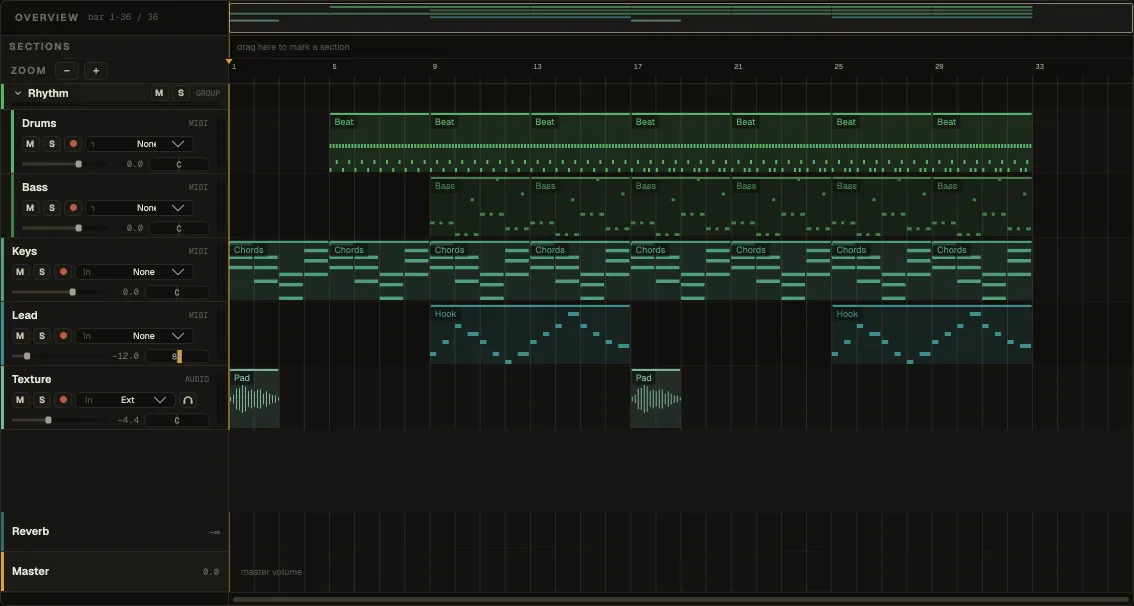
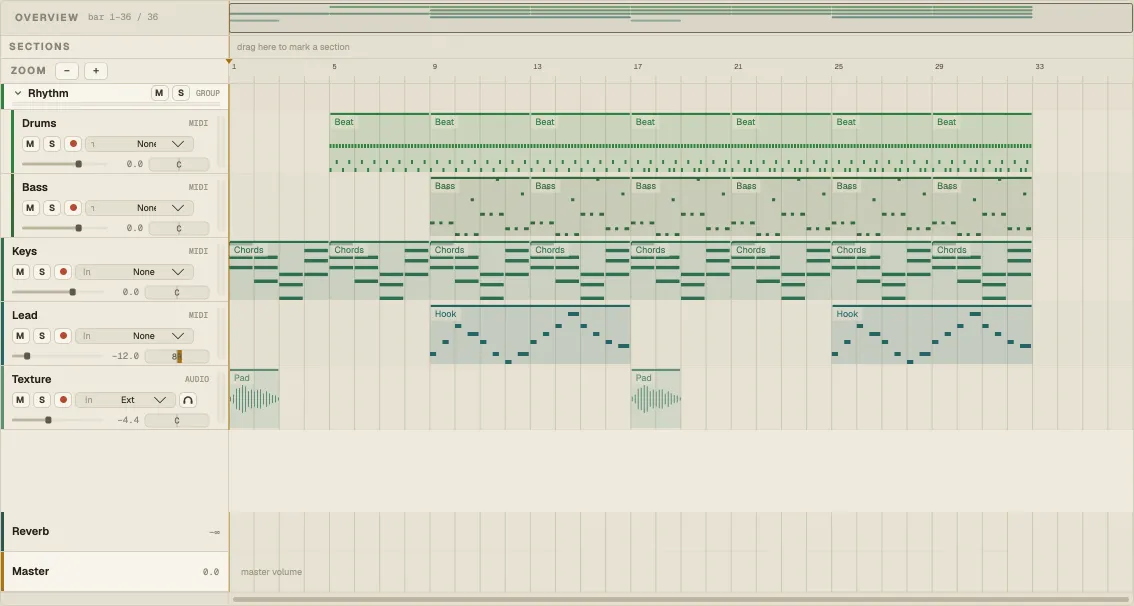
From top to bottom: the Overview strip, the Sections lane, the ruler with the Zoom buttons, the tracks, and — pinned at the bottom — the return tracks and the master.
| Do this | To |
|---|---|
| Double-click empty space on an instrument track | Create a MIDI clip there |
| Click a clip | Select it |
| Drag a clip | Move it — along the track, or to another track of the same kind |
| Drag a clip’s left or right edge | Trim it |
| Drag with ⌥ | Ignore the grid for this drag |
| Double-click a clip | Open it in the clip editor |
| ⌘-click | Add or remove a clip from the selection |
| Drag across empty space | Select every clip the rectangle touches |
| ⌘A | Select all clips |
Clips snap to the GRID set in the transport bar while you drag them; the magnet button switches snapping off. Dragging several selected clips moves them together, as one undo step.
Right-click a clip for Split here, Duplicate, Delete, Deactivate clip, Reverse (audio), Consolidate, Copy / Cut / Paste, Rename…, Loop selection, Copy to Session / Copy to Scene, and — on audio — Separate Stems… and Convert (Convert audio to MIDI). Most of these work on the whole selection at once.
Time ranges
Section titled “Time ranges”⇧-drag anywhere in the lanes — even starting on a clip — to select a stretch of time across tracks instead of whole clips. A range is what Duplicate time, Insert silence, Split and Consolidate work on, and ⌘L loops it.
Moving around
Section titled “Moving around”| Do this | To |
|---|---|
| ⌘ + scroll | Zoom in and out around the mouse pointer |
| ⇧ + scroll, or a sideways swipe | Scroll along the song |
| Scroll | Scroll through the tracks |
| Zoom − / + | Zoom out / in |
| Click in the ruler | Move the playhead |
| Drag along the ruler | Draw a loop range |
The overview strip
Section titled “The overview strip”The Overview above the ruler shows the whole song in miniature, with the part on screen as a window over it. Drag the window sideways to scroll, drag it up or down — or drag its edges — to zoom, and double-click the strip to fit the whole song on screen. The label next to it reads which bars you’re looking at (“bar 1–8 / 36”). View ▸ Toggle overview hides it.
Sections
Section titled “Sections”The Sections lane names the parts of the song — Intro, Verse, Drop — so the structure is readable at a glance.
- Drag along the empty lane to mark a section over those bars.
- Click a section to jump the playhead to its start; double-click it to rename it.
- Drag a section to move it, drag its edge to resize it — always in whole bars.
- Right-click it for Loop section, Select section (as a time range across every track), Duplicate, Rename… and Delete.
Sections are saved with the project. View ▸ Toggle sections hides the lane.
Clip names and groups
Section titled “Clip names and groups”A clip shows its name only where a run of clips begins, so a repeated pattern reads as one block; a clip you named by hand always shows its name. View ▸ Clip names switches between every clip, the first of each run, and none.
Group tracks collapse to a slim titled bar with mute, solo and level, and open to their full controls when selected — see Tracks.
Arrangement and Session together
Section titled “Arrangement and Session together”Clips move between the Arrangement and Session with the clipboard or ⌘⇧C — see Copy, paste and drag. When a track plays Session clips, its Arrangement clips wait; Back to Arrangement in the Session toolbar hands the tracks back.