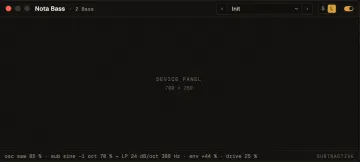

Detail panel and device windows
The panel under the Arrangement or Session shows what you’re working on in detail. Select a track and it shows the track’s devices; double-click a clip and it opens the clip.
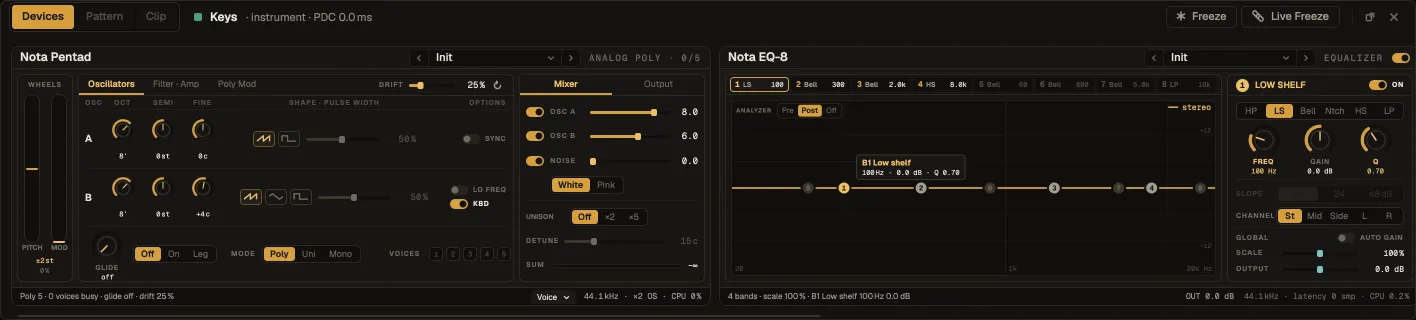
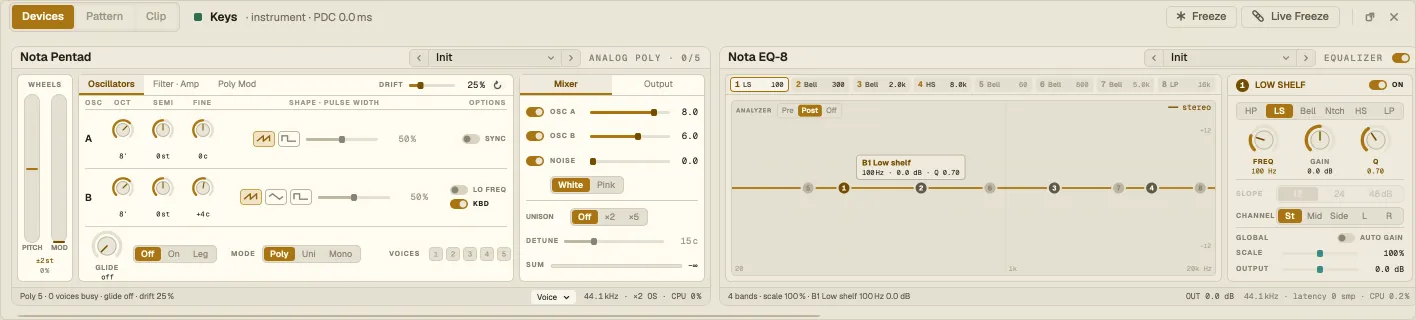
Devices, Pattern, Clip
Section titled “Devices, Pattern, Clip”The tabs in its top-left corner switch what it shows — Tab cycles them:
- Devices — the track’s device chain: MIDI effects, the instrument and the effects, left to right. Scroll sideways when they don’t fit.
- Pattern — the step grid of a MIDI clip on a Drum Rack track.
- Clip — the selected clip in the MIDI or audio clip editor.
The header names the track and its type; for an instrument track it also shows the delay the chain adds (PDC), which Nota compensates automatically.
On the right: Freeze and Live Freeze (freezing a track), the ⧉ button and × to close the panel. View ▸ Toggle detail panel shows or hides it.
The panel in its own window
Section titled “The panel in its own window”⧉ moves the panel into a window of its own — useful on a second screen. That window shows the clip editor on top and the device chain underneath, both at once, with a splitter between them. Close it and the panel docks back under the view.
Device windows
Section titled “Device windows”A device inside a rack — a Drum Rack pad’s sampler, an Instrument Rack chain’s synth, an effect in an Audio Effect Rack chain or on a Nota Rhythm voice — opens in a window of its own. Its title bar carries the device and track name, the preset picker, the S / L size switch and the bypass switch; the full device sits underneath.