

Projects and saving
A project is one folder
Section titled “A project is one folder”A Nota project is a folder whose name ends in .nota. Everything the project needs goes
inside it: the arrangement and session, every device’s settings, plug-in states, and
copies of all the audio it uses. Move it, zip and send it, or back it up as one item and
nothing goes missing. Leave its contents as they are — Nota manages them.
Identical audio is stored once, and a save only writes what changed, so saving stays quick even in projects full of samples.
New, open, save
Section titled “New, open, save”| Command | Key | |
|---|---|---|
| File ▸ New | ⌘N | An empty project. |
| File ▸ Open… | ⌘O | Open a .nota project. |
| File ▸ Save | ⌘S | Save; the first time, choose a name and a place. Every save also records a version. |
| File ▸ Save As… | ⌘⇧S | Save under a new name. The version history comes along. |
| File ▸ Save Version with Note… | ⌥⌘S | Save and say what changed. |
You can also open a project from the start window’s recent list or from the browser’s Projects tab, which lists the projects folder — Documents ▸ Nota Projects unless you choose another one in Settings ▸ Library.
Bringing material in
Section titled “Bringing material in”- File ▸ Import audio… puts audio files on a new track.
- Drag audio or
.midfiles from Finder / Explorer or the browser’s Files tab onto the Arrangement. A MIDI file lands on the instrument track you drop it on, one clip per part; extra parts get new tracks below. Dropped on a Session slot, the whole file becomes one clip.
The audio is copied into the project when you save, so the original files can move or disappear later.
Missing plug-ins
Section titled “Missing plug-ins”If a project uses plug-ins that aren’t installed on this computer, Nota opens it anyway and says what was skipped. When the Nota plug-in registry has them, Nota offers to install them and reopen the project, so the devices come back with their saved settings.
Quitting with unsaved changes
Section titled “Quitting with unsaved changes”Closing a project with changes asks first — and tells you how long they’ve been unsaved:
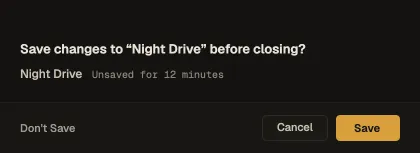
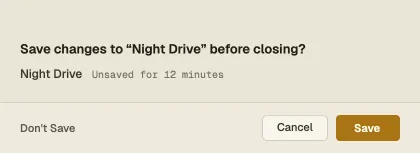
Save (or Return) saves right there and then closes; Don’t Save discards the changes; Cancel (or Esc) goes back to the project.
Recovery after a crash
Section titled “Recovery after a crash”While you work, Nota keeps a recovery copy of the open project in the background. If Nota stops unexpectedly, the next launch offers to Recover that work or Discard it — see First launch.