

Command palette
The command palette finds anything in Nota by typing: a menu command, a track, a built-in device, a plug-in, a preset or a kit. Press ⌘⇧P (CtrlShiftP on Windows and Linux) in any window — even while a text field has the focus — and press it again to close.
Put a device where you are
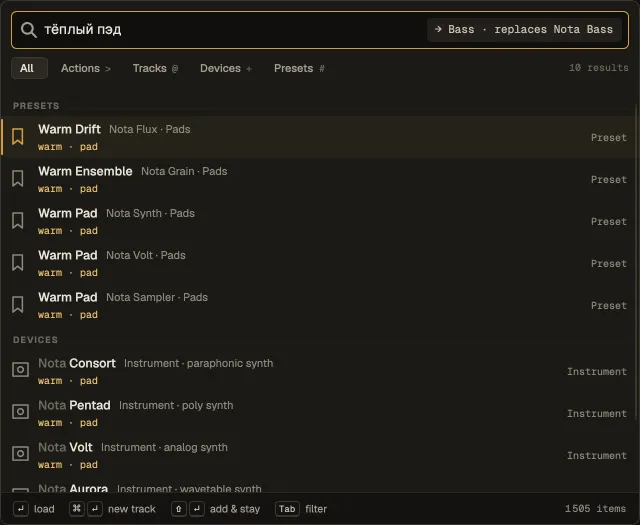
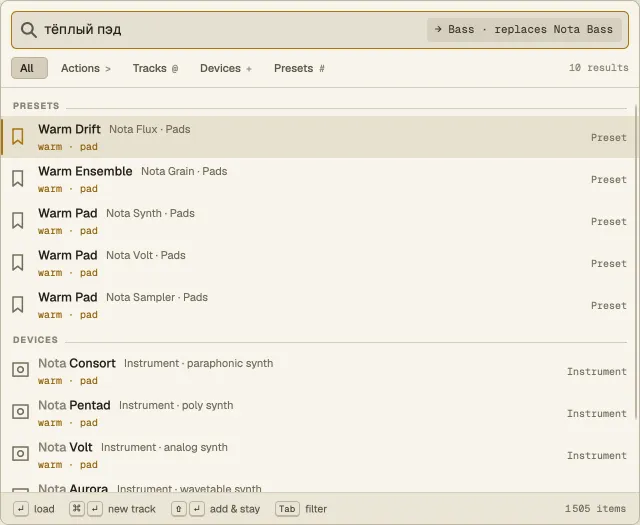
Section titled “Put a device where you are”What you pick goes to the place you opened the palette from, and the pill at the right of the field says where before you press Return — for example → Bass · after Nota Compressor or → new MIDI track.
| Opened from | Where a device or preset goes |
|---|---|
| Devices panel (docked or in its own window) | Right after the selected card; with no card selected, the end of its section (MIDI FX or audio effects) |
| Modular | The track shown in Modular; a Modular node (LFO, ADSR, Math…) lands on the canvas unconnected, under the pointer or in the middle of the view |
| Arrangement, Session, Mixer, Browser | The selected track, at the end of its chain |
| Piano roll | The track of the clip being edited |
An instrument on a track that already has one replaces it — the clips, the other devices and the volume stay. On an Instrument Rack it adds a chain, on a Drum Rack it fills the next free pad. With no track selected, an instrument or instrument preset makes a new track; an effect shows Select a track first and can’t be applied. A MIDI effect can’t go on an audio track, and the row says so.
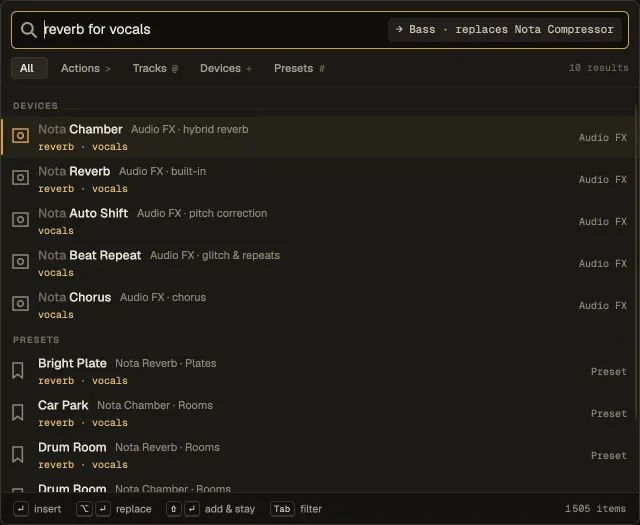
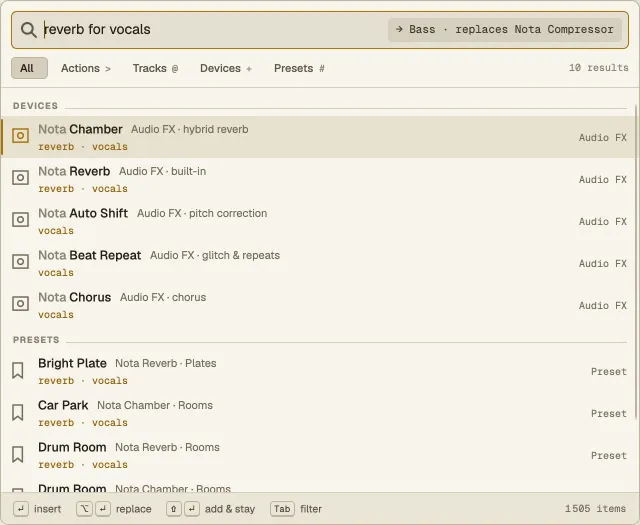
Hold a modifier to change what Return does — the pill and the footer follow:
- ⌘Return — an instrument or instrument preset on a new track; on a track, open it in Devices.
- ⌥Return — replace the selected device instead of inserting after it.
- ⇧Return — apply and keep the palette open; the next device goes after the one you just added.
Every apply is one undo step. A short note at the bottom of the window confirms what happened and has an Undo button (or press ⌘Z).
Search by name or by meaning
Section titled “Search by name or by meaning”- Names, loosely. Letters in order are enough: afl finds Nota Auto Filter, nv finds Nota Vintage. The matched letters light up. “Nota” at the front of a name doesn’t count, so type the distinctive word.
- One typo per word is forgiven (reverv, compresor).
- The wrong keyboard layout is read too: кумуки typed with the Russian layout on finds reverb, and a line under the filters says so.
- Meaning, in English or Russian. Every device, plug-in and preset knows what it is, how it sounds, what part it plays and what it’s used on. So warm pad, тёплый пэд, reverb for vocals, компрессор на барабаны, sidechain or bass for techno all find something — and a result found by meaning rather than by name shows why, for example warm · pad. A name that matches exactly always comes first.
Filter by type
Section titled “Filter by type”Type a prefix, or press Tab / ⇧Tab to step through the chips above the list:
| Prefix | Finds |
|---|---|
> |
Actions — menu and view commands, transport, Settings pages, each with its shortcut |
@ |
Tracks — including groups, returns and the master |
+ |
Devices and plug-ins (a plug-in shows its vendor and format) |
# |
Presets — factory, your own, and drum kits |
~ |
Modular nodes (only when opened from Modular) |
An action that can’t run right now (Quantize Notes with no MIDI clip open) stays hidden unless you type its name; then it shows greyed out with the reason.
With nothing typed, the palette shows Recent — the last five things you applied from it — and suggestions for where you are: effects in Devices, nodes in Modular, Launch Scene and Stop All Clips in Session. Things you use often, from the palette or the browser, rank higher over time.
| Key | Does |
|---|---|
| ↑↓ PgUpPgDn HomeEnd | Move through the results |
| Return | Apply (see the modifiers above) |
| Tab | Next type filter |
| Esc | Close and go back where you were |
The mouse works too: hovering selects a row, a click applies it, a click outside closes the palette. Space types a space in the field — it doesn’t start playback while the palette is open.