

Preview player
The player at the bottom of the browser lets you hear something before it goes into the project. It appears once you use a list.
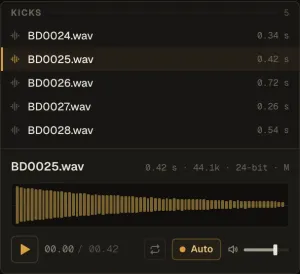
Samples (Files tab)
Section titled “Samples (Files tab)”The file’s real waveform — click it to play from that point, hover for the time — with Play / Stop, the time, Loop, Auto (play each file as you select it) and a preview volume (double-click it to reset to 0 dB). ↑ ↓ step through the files; with Auto on, each one plays as you land on it.
Presets, kits and devices
Section titled “Presets, kits and devices”Under the Instruments, Audio effects, MIDI effects and Presets tabs the same player plays the selected factory preset, saved preset, drum kit or device. These tabs have their own Auto, off by default — press Play, or turn Auto on to hear each one as you select it. Sounds are rendered in a few milliseconds and the next row is prepared ahead, so stepping through a folder is instant.
- Instruments play a phrase that suits them — a chord for pads, a riff for basses, a line for leads, an arpeggio for plucks and bells.
- Drum kits (Drum Rack and Nota Rhythm) play a groove on their own pads.
- MIDI effects play a phrase that shows what they do.
- Audio effects process a demo track — Drums, Keys or Bass, or genre loops (Pop, House, Techno, Hip-Hop, Trap, Drum & Bass, Synthwave, Ambient). A track that suits the effect is picked for you; the track button picks another (scroll over it to step through them), or the sample you last selected in Files.
WAVE / SPEC switches the window between the waveform and a live spectrum.
Instrument Racks and plug-in presets aren’t previewed — the player says why.