

First launch
The start window
Section titled “The start window”When Nota opens, the start window comes first. It is the quickest way back into what you were working on.
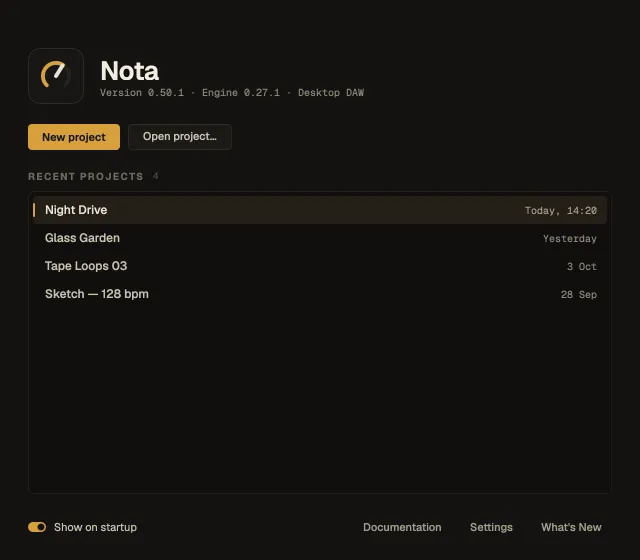
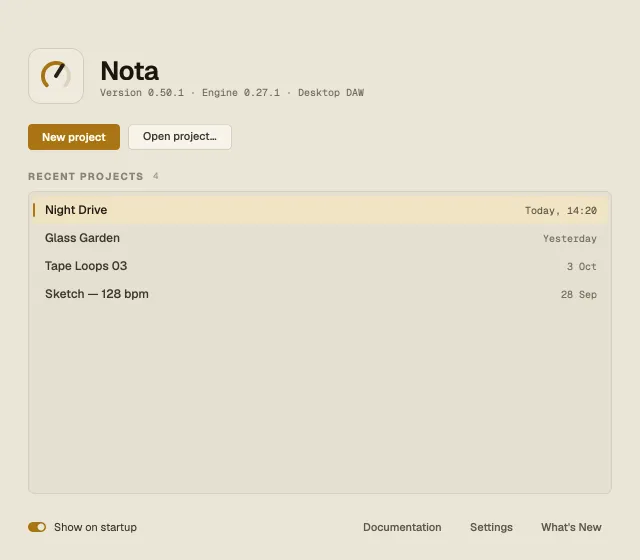
- New project — an empty project in the main window.
- Open project… — pick a
.notaproject anywhere on disk. - Recent projects — the projects you opened or saved lately, newest first, with when you last touched them. Click one to select it, double-click it (or select it and press Return) to open it. The arrow keys move through the list.
- Show on startup — turn the start window off if you’d rather go straight to an empty project. File ▸ New (⌘N) and File ▸ Open… (⌘O) work the same from the main window.
- Documentation, Settings and What’s New at the bottom open this manual (at Your first track) and those windows.
When a new version is out
Section titled “When a new version is out”The start window also shows a banner when a new Nota is available: Update downloads it with a progress bar and checks it against the release’s checksum, Release notes opens the release page, Dismiss hides the banner. Once it’s downloaded, choose Restart now — or Later, and it installs the next time you quit.
What’s New
Section titled “What’s New”After an update, a What’s New window lists everything that changed since the version you had, once. You can bring it back any time from Help ▸ What’s New — or read the changelog.
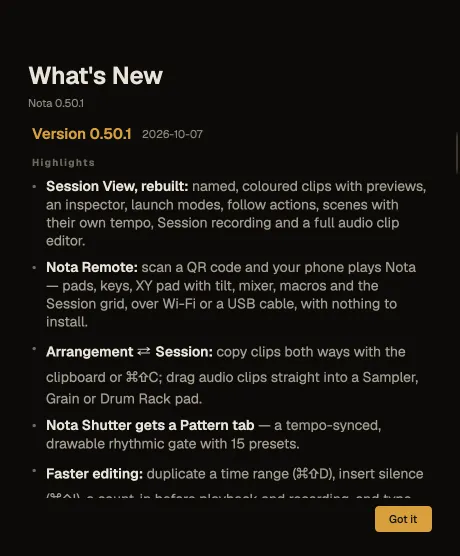
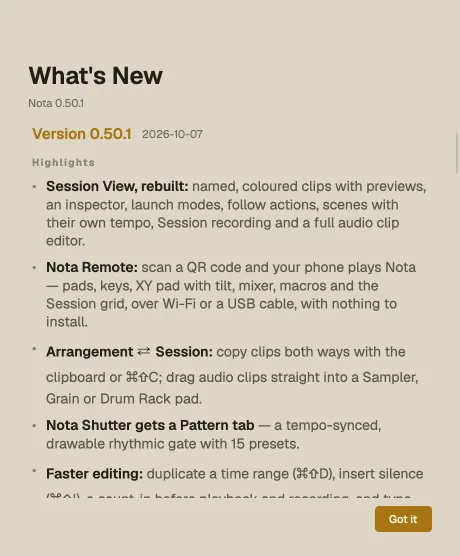
Help ▸ About Nota shows the app and engine versions and the licence.
If Nota didn’t close properly
Section titled “If Nota didn’t close properly”While you work, Nota keeps a recovery copy of the open project in the background (about every 30 seconds, and only when something changed). If Nota or your computer stops unexpectedly, the next launch asks:
Nota didn’t shut down cleanly. Recover unsaved work from …?
Recover brings the project back as it was; Discard throws the recovery copy away. The recovery copy is a safety net, not a save — save your project as usual (⌘S), see Projects and saving.