

Assistant
Ce contenu n’est pas encore disponible dans votre langue.
The Assistant answers questions about Nota from this manual, right in the app. It sits on the right of the main window, the full height of the work area, and works offline — the manual ships inside Nota, so no internet and no AI model are needed.
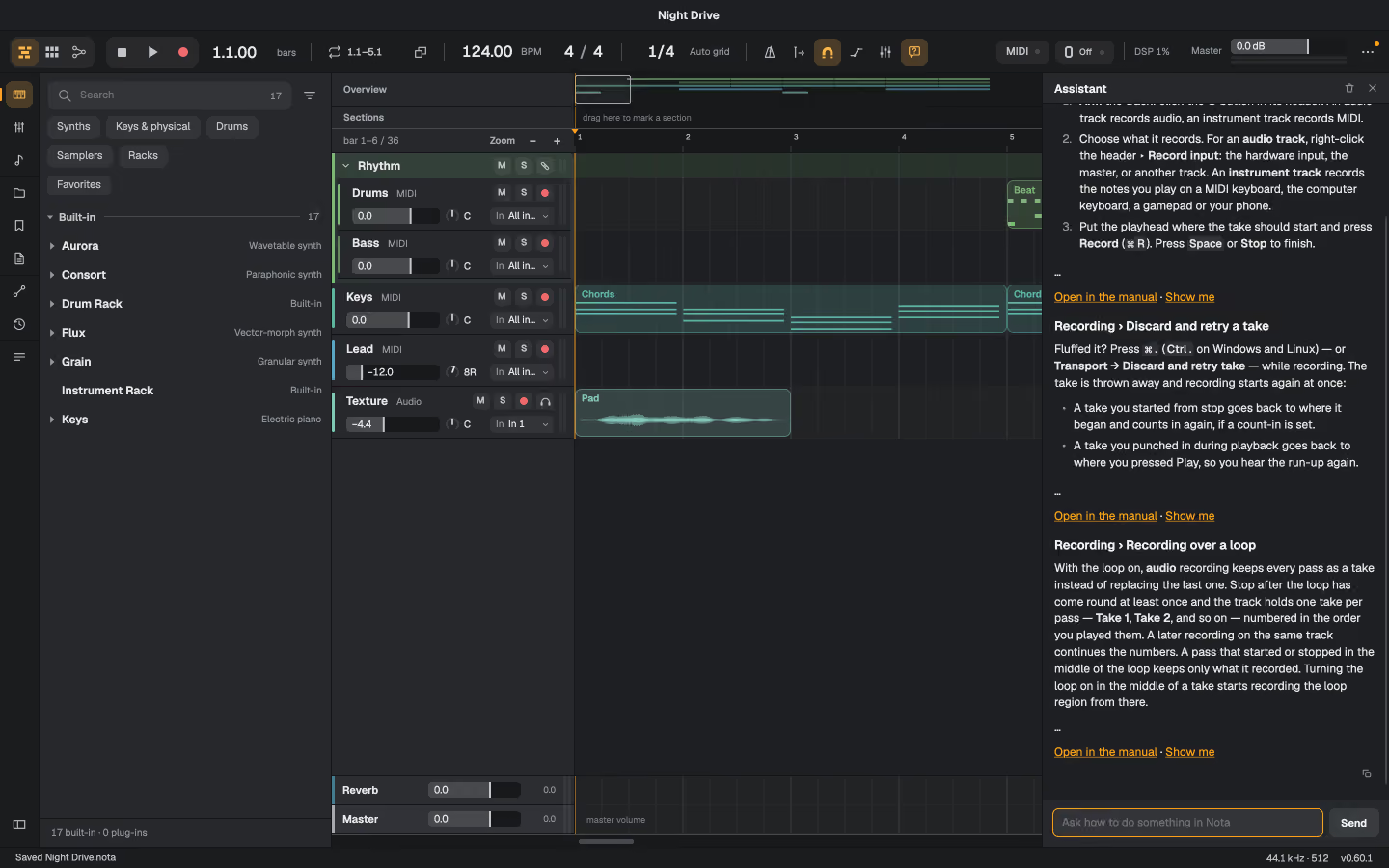
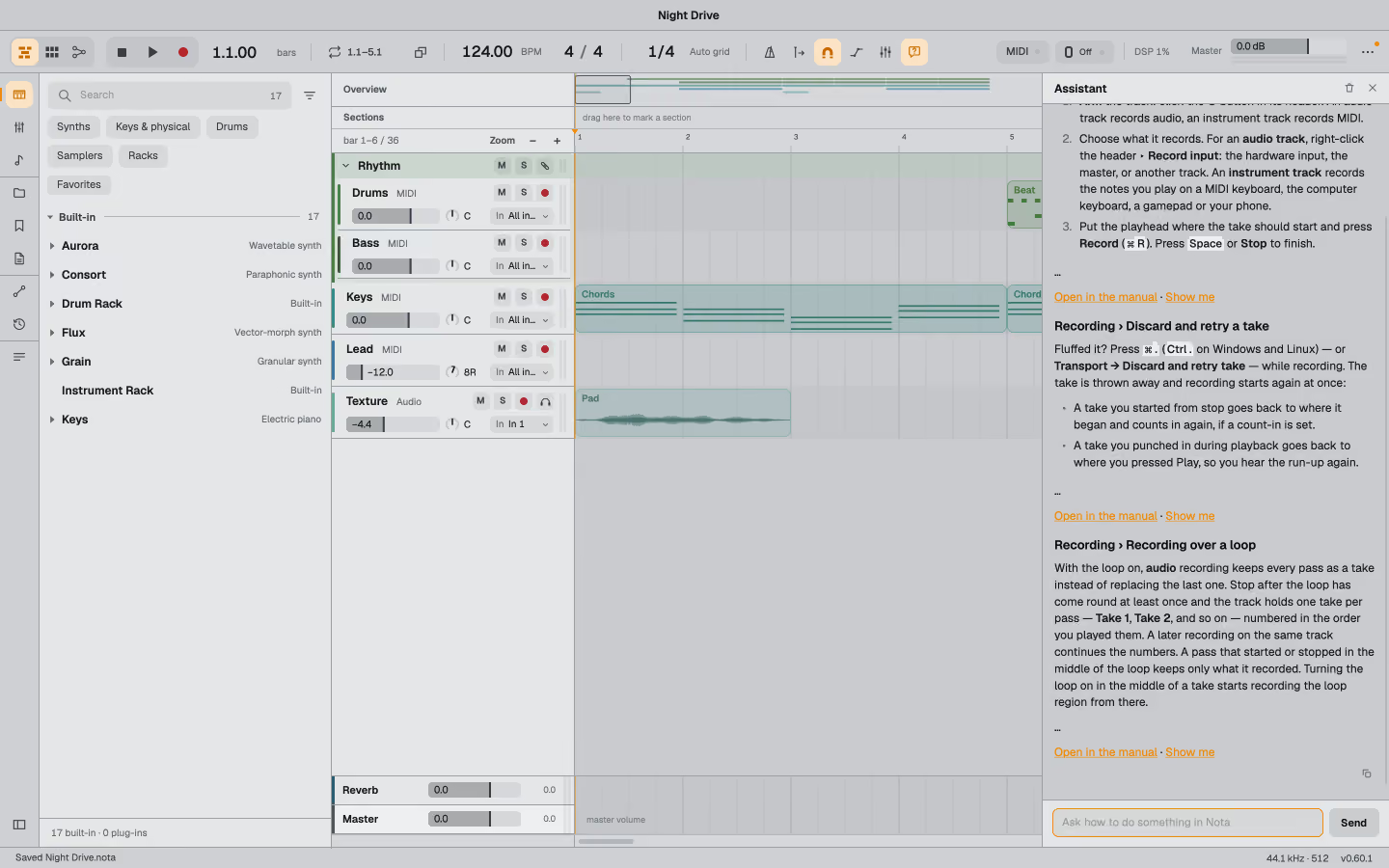
Open the Assistant
Section titled “Open the Assistant”Click the speech-bubble key on the transport bar, choose View ▸ Assistant, or press ⌘⇧H (CtrlShiftH on Windows and Linux). The same again closes it. Drag its left edge to make it wider or narrower; Nota remembers the width and whether it was open. On a narrow window the key moves into the transport bar’s ⋯ menu.
Ask a question
Section titled “Ask a question”Type what you want to do in your own words — how do I duck the bass when the kick hits, как записать несколько дублей — and press Return (⇧Return starts a new line). The reply quotes the two or three sections of the manual that answer it, each with a link to its page. A question in Russian gets the Russian manual, one in English the English manual. Typos, the wrong keyboard layout and other word forms are forgiven. If nothing in the manual fits, the reply says so and links to the manual.
Replies read like the manual: headings, lists, tables, key caps and the note, tip and caution boxes. Select text to copy part of it, or use the copy key under a reply for all of it. The bin key at the top clears the conversation; it is never saved with the project and is gone when you quit.
Show me
Section titled “Show me”Under a section that explains how to do something, Show me walks you through it. Each step opens what is needed — the right view, the Mixer, the Detail panel or a browser tab — and outlines the control in orange; the panel says Step 2 of 4 with Back, Next and Done. Do the step on the control itself, then press Next. If a step needs something first, such as a selected track, the panel says so and points at where to do it. Show me only shows: it never changes your project and never starts or stops playback. Esc stops it.
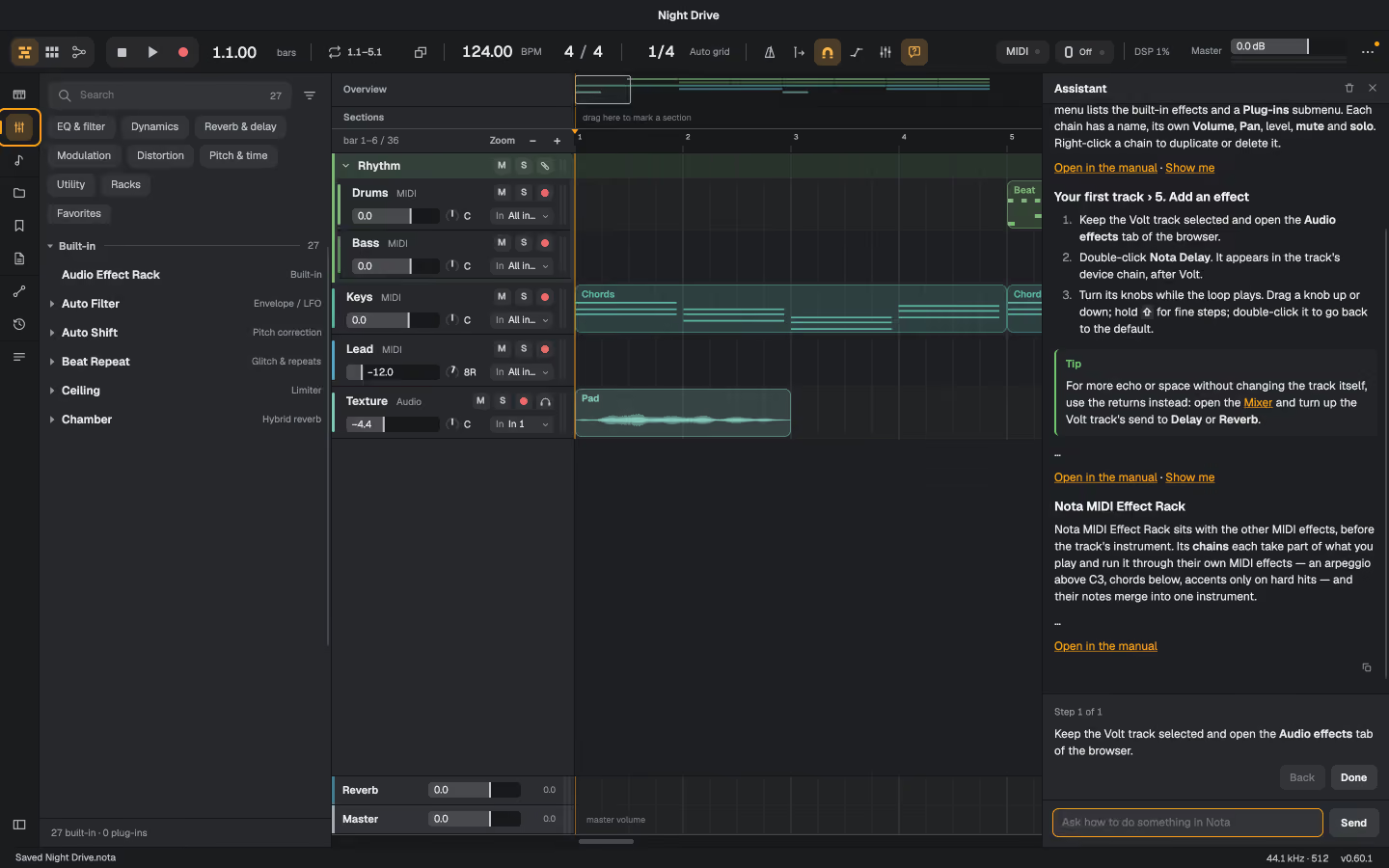
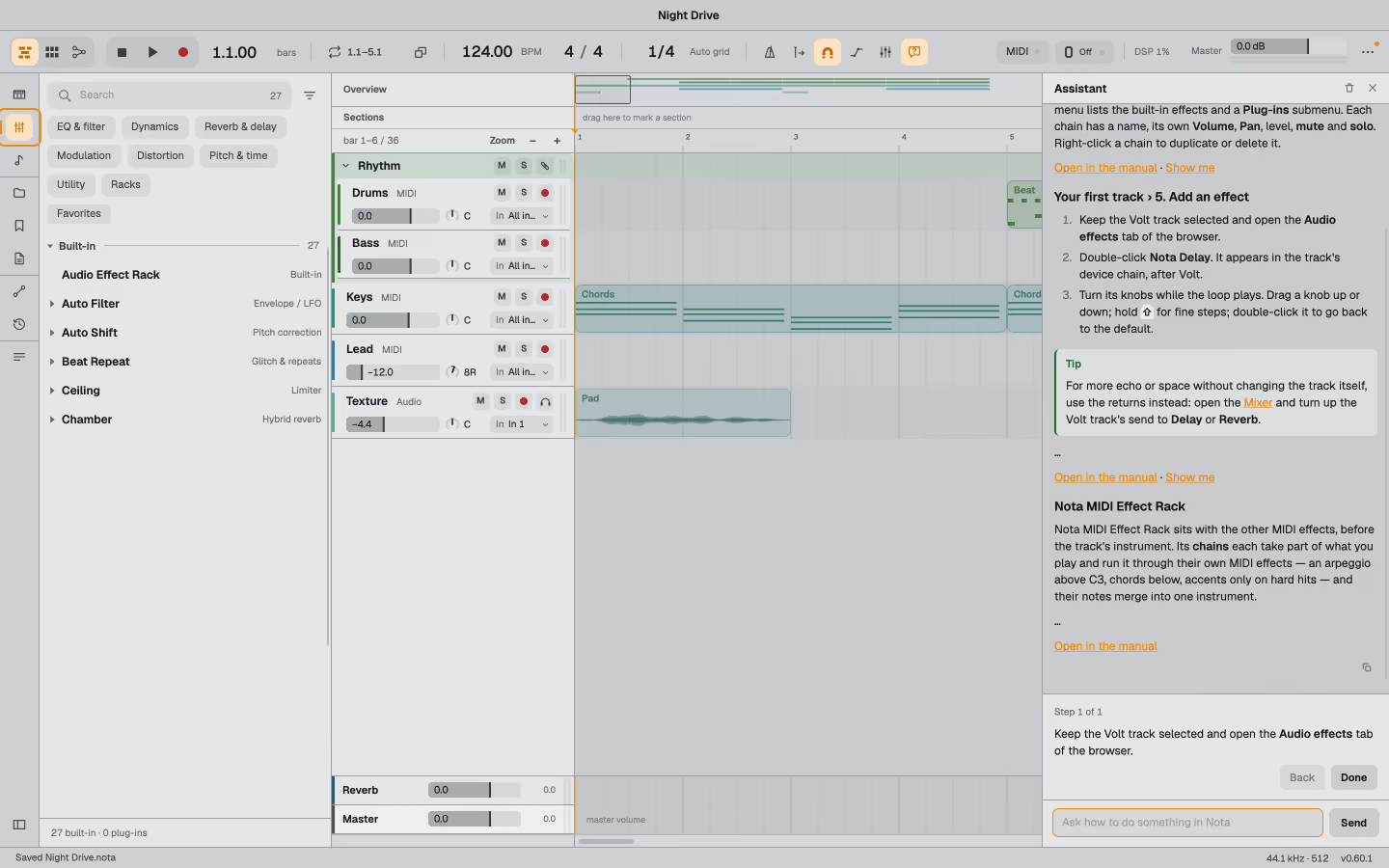
Search by meaning
Section titled “Search by meaning”Words alone find most answers. For questions phrased very differently from the manual, install Manual search in Settings ▸ Downloads ▸ AI Models — the multilingual-e5-small model, about 135 MB, which also runs offline. The first time the panel opens after that, Nota reads the manual once in the background (under a minute); until then, and while you record, the Assistant answers by words.